Interactive Flat Panels for Small Classrooms: How to Choose the Right Size Without Overspending
Walk into almost any school and you will notice the same pattern. The large auditorium has a beautiful 98-inch display. The main conference room has an 86-inch panel. But the small classroom down the hall — the one with 20 students — still has an old projector, or a panel that is either too small to read from the back or so large it dominates the room.
Small classrooms are often overlooked in procurement planning. They are not glamorous, they do not make headlines, and they seem simple to equip. But getting the size right in a small room is actually more nuanced than in a large one — and the wrong choice either wastes money or undermines learning.
This guide covers the decisions that actually matter for small classrooms: screen size, resolution, brightness, touch technology, processor choice, software licensing, mounting and total cost of ownership.
Why Small Classrooms Are Trickier Than They Look
In a large lecture hall the math is straightforward: you need a big screen because people are far away. In a small classroom, several factors collide:
- Seating is often flexible. Desks may be arranged in rows, clusters or a U-shape — each configuration changes the viewing angles.
- The teacher moves around. Unlike a lecture hall where the instructor stays at the podium, in a small room the teacher circulates, so the display has to work from multiple positions.
- Budgets are tighter. Small classrooms are numerous, so per-unit cost matters more. Spending flagship money on every room is not realistic.
- The room may serve multiple purposes. A space used for maths in the morning and group work in the afternoon has different requirements.
The good news: small classrooms do not need flagship specifications. They need the right specifications.
The Size Question: What Actually Works
The rule of thumb used across the industry is 1 inch of screen diagonal for every 1 foot of viewing distance — but this was developed for passive viewing. For interactive content, where students need to read small text or distinguish fine details, a more conservative ratio works better.
| Room type | Typical seating capacity | Recommended size |
|---|---|---|
| Small tutorial room | 6–10 students | 55"–65" |
| Standard classroom | 15–25 students | 65"–75" |
| Larger classroom | 25–35 students | 75"–86" |
For a small classroom with 20 students, 65" to 75" is usually the sweet spot. A 65-inch panel works if the furthest student is within about 20 feet. A 75-inch panel gives more comfortable margins and handles flexible seating arrangements better.
The mistake to avoid: buying an 86-inch panel for a small room "just to be safe". In a 25-foot room, an 86-inch screen can actually be harder to use — the top of the screen may be above comfortable reach for shorter teachers, and the display can overwhelm the space. It also costs significantly more.
The other mistake: choosing 55" to save money. In a room with 20 students, students at the back will strain to read anything smaller than large-format text. The savings are not worth the daily frustration.
 Sizing a display for the room, not for the spec sheet, is what keeps teachers using it every day.
Resolution and Brightness: Where Not to Cut Corners
Even in a small room, two specifications matter:
- 4K UHD resolution (3840×2160) is now standard and should not be compromised. On a 65-inch screen, 4K delivers noticeably sharper text and images than 1080p. For younger students learning to read, or for detailed diagrams in science and geography, this clarity matters.
- Brightness of 350 nits or higher ensures visibility even with windows nearby. Small classrooms often have less control over ambient light than dedicated auditoriums — blinds may be broken, or the room may face the sun. A 350-nit panel with anti-glare glass handles these conditions well.
- Anti-glare glass is worth prioritising. It reduces reflections and eye strain, which matters especially in rooms where students sit at an angle to the screen.
Touch Technology: IR vs. Capacitive in Small Rooms
For small classrooms, infrared (IR) touch remains the practical choice for most deployments.
| Factor | IR touch | Capacitive touch |
|---|---|---|
| Cost | More economical | Higher |
| Input flexibility | Finger, stylus, glove, any object | Finger or capacitive stylus |
| Durability in classrooms | Proven over many years | Good, but more sensitive |
| Multi-touch | 20–40 points | Usually 10–20 points |
IR touch supports up to 40 simultaneous touch points on many models — more than enough for group activities where several students work at the screen at once. It also allows teachers to write with a finger, a stylus or even a pointer, which matters in rooms where multiple users share the display.
For premium installations — executive boardrooms or design studios — capacitive touch offers a smoother, glass-like feel. But for a standard classroom with 20 students, IR delivers better value.
The Processor Question: How Much Power Do You Need?
This is where small classroom procurement often goes wrong in both directions.
- Over-specifying: buying an RK3588 flagship panel for a room that mainly displays documents, plays videos and runs basic whiteboard software. The extra processing power sits unused, and the budget could have equipped another room.
- Under-specifying: choosing a budget chipset that struggles with modern software, causing lag during lessons and frustration for teachers.
For most small classrooms, the RK3576 is the right fit. It offers:
- 8-core processing sufficient for smooth Android performance
- 6 TOPS NPU — the same AI capability as the RK3588
- Support for AI lesson tools, real-time translation and cloud features
- Android 16 with Google EDLA certification
- A price point that allows more rooms to be equipped
Our RK3576 4K interactive flat panel is built for exactly this profile of classroom.
The RK3588 makes sense when the room is used for intensive tasks: 8K video, heavy multitasking, advanced AI processing, or when the panel is expected to serve as a primary computing device for design or engineering work. For a standard 20-student classroom, RK3576 is not a compromise — it is the appropriate choice.
Software: What Teachers Actually Use
Hardware gets the attention, but software determines whether the panel becomes a daily tool or a dust collector. Key questions to ask:
- Is the whiteboard software included, or does it require a subscription? Perpetual licences are significantly better for long-term budgeting. Riotouch Cloud, for example, includes a perpetual licence with no annual fees.
- Does it support the tools teachers already use? Integration with cloud storage, document formats and video conferencing platforms reduces training time.
- Are AI features included or extra? AI lesson planning, real-time translation and attendance analytics can save teachers significant time — but only if they are built into the platform rather than sold as add-ons.
- Can content be shared easily? Wireless screen sharing, QR-code distribution and cloud synchronisation matter in rooms where students need to present their work.
For small classrooms, simplicity often wins over feature count. A panel that is easy to turn on, easy to write on and easy to share from will be used more than one with twenty features nobody has time to learn.
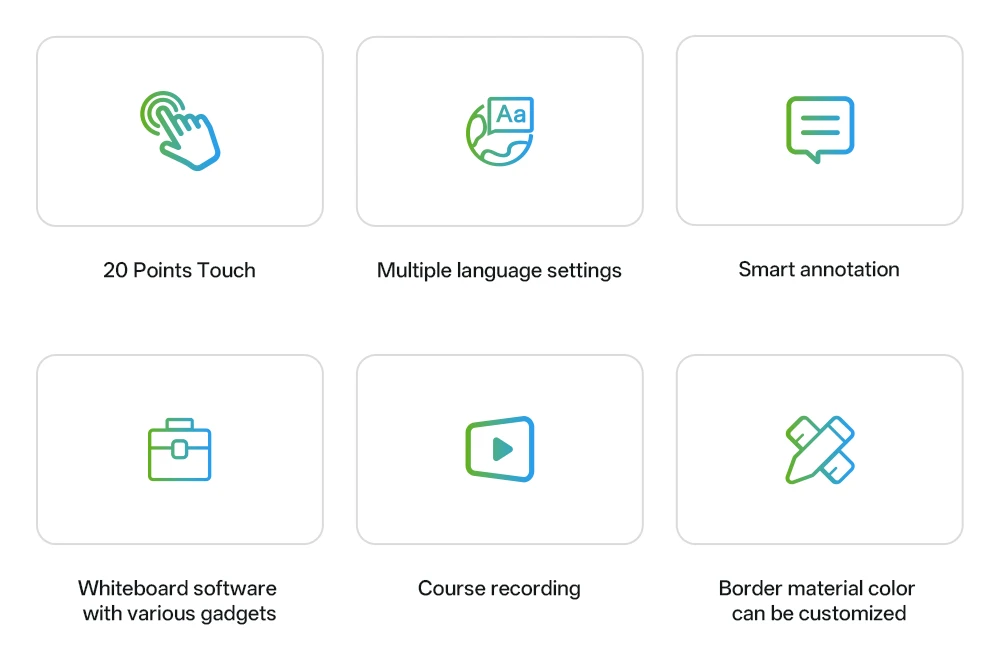 Included software with a perpetual licence keeps the five-year cost of ownership down.
Mounting and Room Layout
Small classrooms have less wall space, and the display competes with whiteboards, bulletin boards and storage. Consider:
- Wall mount vs. mobile stand. A mobile stand offers flexibility if the room is reconfigured or the panel needs to move between rooms. A wall mount saves floor space but locks the position. Motorised stands also solve the height problem for younger classes.
- Height. The bottom of the screen should be about 90–120 cm from the floor for comfortable reach by teachers and students. In rooms with younger children, lower placement is better.
- Adjacent surfaces. If the panel replaces a traditional whiteboard, consider whether side boards or a sliding chalkboard system would help preserve writing space — see our sliding chalkboard buyers guide.
Riotouch offers motorised TV stands, interactive side boards and sliding chalkboard combinations that address these layout challenges, and an OPS module slot so the computing power can be upgraded later without replacing the panel.
Total Cost of Ownership: The Full Picture
When comparing options, look beyond the purchase price:
| Cost factor | What to consider |
|---|---|
| Purchase price | Panel, mounting, installation |
| Software licensing | Perpetual vs. annual subscription |
| Power consumption | Look for ENERGY STAR certification |
| Maintenance | Cleaning supplies, occasional calibration |
| Repairs | Warranty terms, spare parts availability |
| Lifespan | Build quality, touch technology durability |
| Upgrade path | OPS slot for future computing upgrades |
A panel that costs 20% more but includes perpetual software, an OPS slot and ENERGY STAR certification may cost less over five years than a cheaper alternative with hidden costs.
A Practical Checklist for Small Classroom Procurement
Before finalising a purchase, confirm:
- ☑ Furthest viewing distance measured; size selected accordingly
- ☑ 4K UHD resolution confirmed
- ☑ Brightness ≥350 nits with anti-glare glass
- ☑ IR touch with 20+ points (for standard classrooms)
- ☑ Processor matched to actual use (RK3576 for most)
- ☑ Android version and Google EDLA certification verified
- ☑ Software included with perpetual licence (no hidden fees)
- ☑ OPS slot available for future upgrades
- ☑ Mounting solution suited to room layout
- ☑ Warranty and after-sales support terms in writing
Frequently Asked Questions
What size interactive flat panel is best for a 20-student classroom?
65" to 75". A 65-inch panel suits rooms where the furthest student sits within roughly 20 feet; a 75-inch panel gives more margin and copes better with clustered or U-shaped seating.
Can an 86-inch panel be used in a small classroom?
It can, but it is rarely the right call. In a 25-foot room the top of an 86-inch screen may be above comfortable reach, the display can overwhelm the space, and it costs significantly more than the size the room actually needs.
Is 4K resolution necessary on a classroom display?
Yes. 4K UHD is now the standard, and on a 65-inch screen it delivers visibly sharper text and diagrams than 1080p — which matters for younger readers and for detailed science or geography content.
Do small classrooms need RK3588 processing power?
Usually not. The RK3576 handles Android, whiteboard software, AI lesson tools and screen sharing smoothly, and it shares the 6 TOPS NPU with the RK3588. Choose RK3588 when the panel doubles as a workstation for design, engineering or 8K work.
Is IR touch good enough for schools?
Yes. IR touch is more economical, supports 20–40 touch points, works with a finger, stylus, glove or pointer, and has been proven in classrooms for years. Capacitive touch is preferable mainly in premium boardroom or design-studio settings.
Conclusion
Equipping a small classroom well is not about buying the biggest or most powerful display. It is about matching the panel to the room, the users and the tasks. In most cases, a 65" to 75" 4K panel with IR touch, RK3576 processing, EDLA certification and included software delivers everything a 20-student classroom needs — at a price that allows more rooms to be equipped.
The goal is not the most impressive specification sheet. It is a display that teachers use every day without frustration, and that serves students effectively for years. For a wider view of room-by-room requirements, see our classroom interactive flat panel guide, and our guide to motorised stands in classrooms and meeting rooms.
Related Product


Related Articles
Planning a Classroom Rollout?
Our team helps schools and integrators specify the right interactive display for each room type — from small tutorial spaces to large lecture halls. We can provide sizing guidance, product comparisons, sample units and factory-direct pricing.
Contact Riotouch → · WhatsApp +86 188 0256 1599 · sina@riotouch.com