Text It, Don't Design It: Publishing a Digital Signage Ad Through a Conversational CMS
A 79-second demo, one sentence, and one live advertisement. This is what a content management system looks like when the people who actually change the content are allowed to use it.
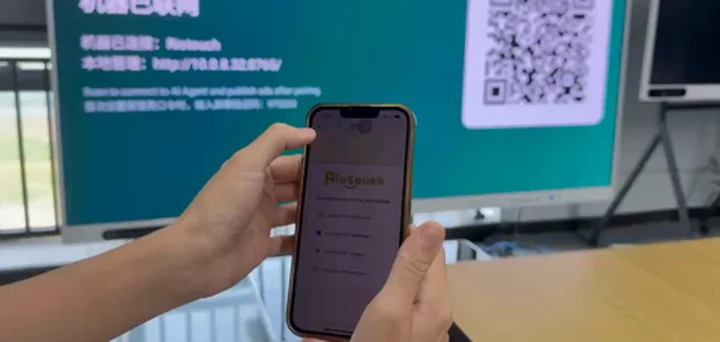
There is a moment in the video that sums it up
A phone is held up against a display; on the screen, an advertisement appears that nobody designed. No design file. No scheduling software. No USB stick, no site visit. This article walks through each step of that video and explains what the CMS is doing underneath, and where the honest limits are.
Step 1 — Pair the display with a QR code, not an account form
The first frame shows the pairing screen on the display itself:
- Machine connected: Riotouch — the panel identifies itself before you have entered anything.
- Local management:
http://10.0.0.32:8700— a local address, so the device can be reached on the same network even before cloud pairing completes. - “Scan to connect to AI Agent and publish ads after pairing” — the QR code is the whole onboarding.
Compare that to the usual signage setup: install a player, create a cloud account, type a pairing code that the screen only displays once and times out in 30 seconds. Here the screen exposes its own identity and a QR code, and pairing starts from the phone.
Step 2 — Choose a channel you already use
The second frame is the phone app, and it is deliberately anti-app: the logo, the line “Choose how to control your display”, and four options:
- Continue with WhatsApp
- Continue with Viber
- Continue with Telegram
- Continue with number
This is the decision that makes the system usable by the people who actually change advertising content: shop staff, a school administrator, a receptionist. They are not asked to learn a new interface. They are asked to open the chat app that is already on their phone.
Step 3 — Say what you want, in your own words
The chat window is titled Ad Assistant, and the header shows 1 device connected. The message typed by the operator is not a structured form field; it is a sentence:
“English Training courses adds with 20%, create an add and display on the screen”
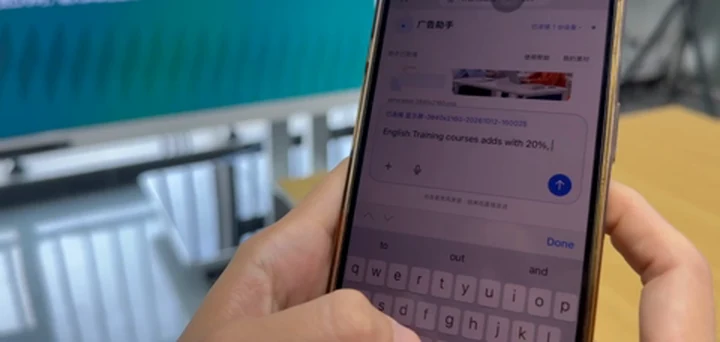
Notably, the sentence is imperfect English with a typo in “adds”. It is not parsed by a keyword template — it is understood. A human operator types like this at 6 p.m. when the promotion starts tomorrow; any system that requires clean syntax will not be used twice.
Step 4 — The CMS generates the creative, not just the playlist
A classic CMS accepts a finished JPEG or MP4 and places it in a playlist. In this demo the asset does not exist yet — it is produced after the message. The result is an “English Training” poster with “20% off all courses”, a red discount badge, classroom imagery, and a QR area.
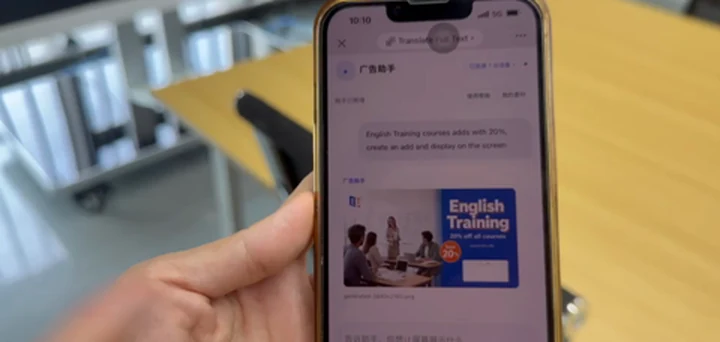
That is the difference between a playlist manager and an ad system. The input is the intent; the output is the artwork.
Step 5 — Read the status trail, not the success message
Here is the most useful line in the entire video, the assistant’s own report back to the operator:
“Submitted to your display (2026-10-12 09:51 Beijing time) — each image shows 20 seconds and loops. CMS has accepted and reported it as dispatched; no playback confirmation from the device yet.”
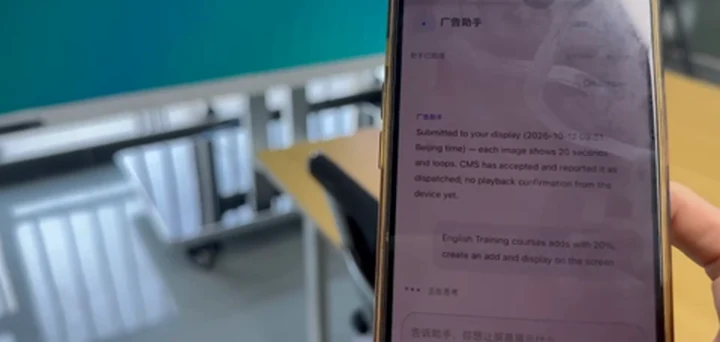
Read that again, because most digital signage dashboards do not talk like this. The system separates three facts that are routinely blurred into one green tick:
| Stage | What it means | What most dashboards show |
|---|---|---|
| Accepted | The CMS received and stored the content | ✅ “Published” |
| Dispatched | The CMS pushed it to the device channel | ✅ “Published” |
| Playback confirmed | The device reported that it actually rendered it | often missing |
Only after the device reports back does the status chip on the message flip to “On screen”. 20 seconds per image, looping, is stated up front, so the operator knows the dwell time without opening a second screen.
For anyone who has ever been told “the ad is live” by a client-side marketing manager while standing in front of a black screen, this distinction is the whole value of the system.
What this workflow replaces
| Task | Traditional signage CMS | Conversational CMS in this demo |
|---|---|---|
| Pair the screen | Account, player install, pairing code | Scan one QR code |
| Create content | Designer exports a file | Generated from a text instruction |
| Publish | Playlist editor on desktop | Message in WhatsApp / Viber / Telegram |
| Confirm playback | Usually not available | Device-level confirmation → “On screen” |
| Who can do it | Trained marketing staff | Shop staff with a phone |
Where it fits in the real world
- Retail promotions — a discount runs Friday to Sunday; the poster goes up from the shop floor on Thursday night.
- Education and training centres — enrolment campaigns change weekly; the marketing coordinator is one person, not a department.
- Reception and showroom screens — the front desk updates the welcome slide without opening a laptop.
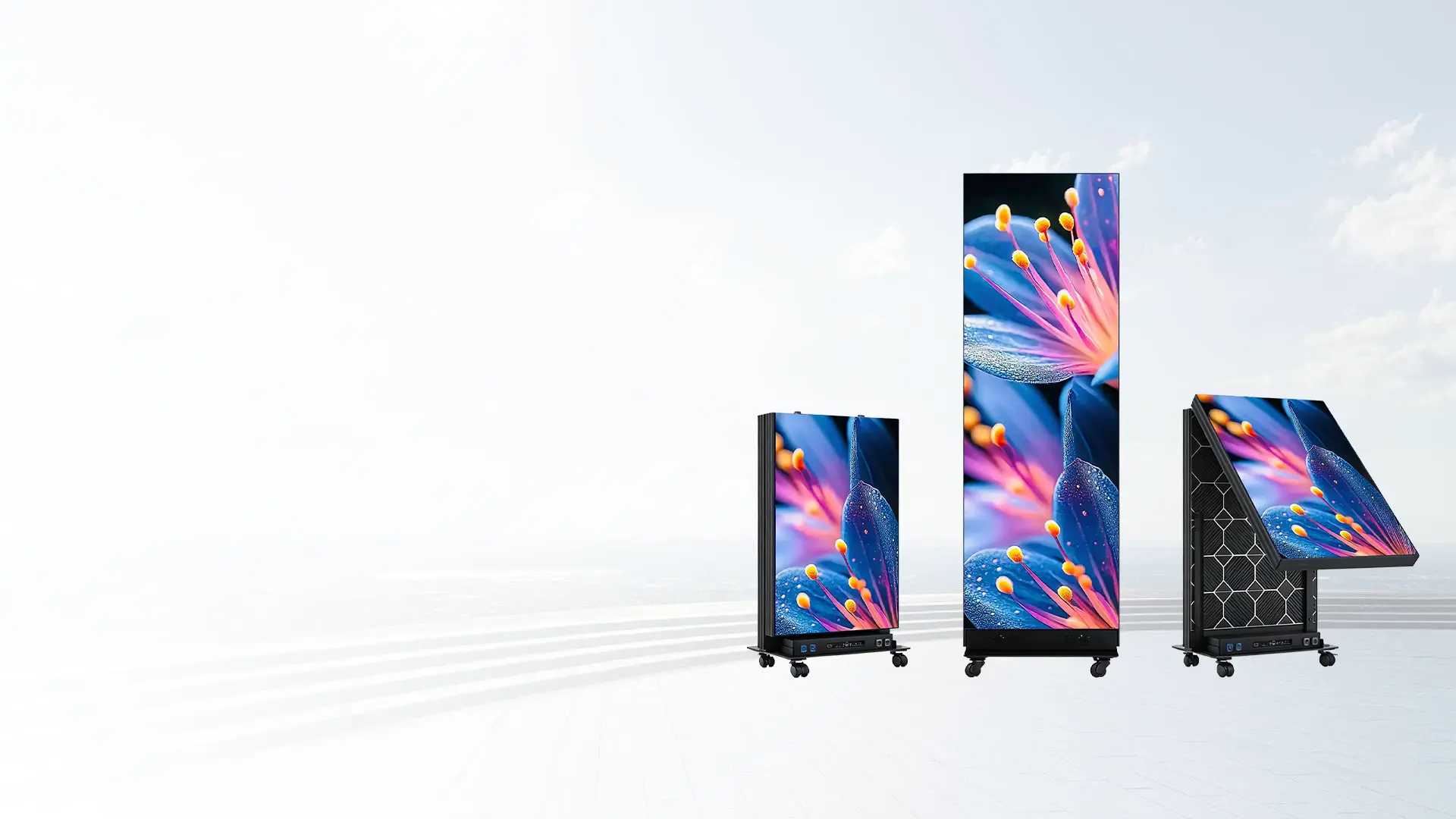
- LED posters and mobile stands — the same pairing works on a display that moves between events, where a USB-based CMS is not practical.
Honest limits of a demo
This video shows one device, one message, one generated ad, and one confirmed playback. It does not demonstrate multi-screen groups, playlist scheduling by date, or user permission levels — so this article does not claim them. What it does demonstrate is the mechanical loop that everything else is built on: pair, speak, generate, dispatch, confirm.
If you need group management, scheduling or role-based access today, ask us directly and we will tell you what the current build supports rather than what a roadmap might say. The CMS solution page and the cloud solution page describe the wider platform; the AI assistant page covers the generation side, and the RK3576 platform is the hardware this class of workload runs on.
Frequently asked questions
Do I have to install an app?
No. In the demo the control channel is an existing messaging app — WhatsApp, Viber, Telegram — or a phone number.
How long does each ad show?
The system reports 20 seconds per image, looping, in the same message that confirms the upload.
What if the ad is not actually displayed?
The status stays at “dispatched” and says so explicitly: “no playback confirmation from the device yet.” You see the gap instead of a false green tick.
Can the same screen be managed remotely?
The pairing screen shows both a cloud path (QR code / AI agent) and a local management address, so the display can be reached on the local network as well.
Which Riotouch hardware does this run on?
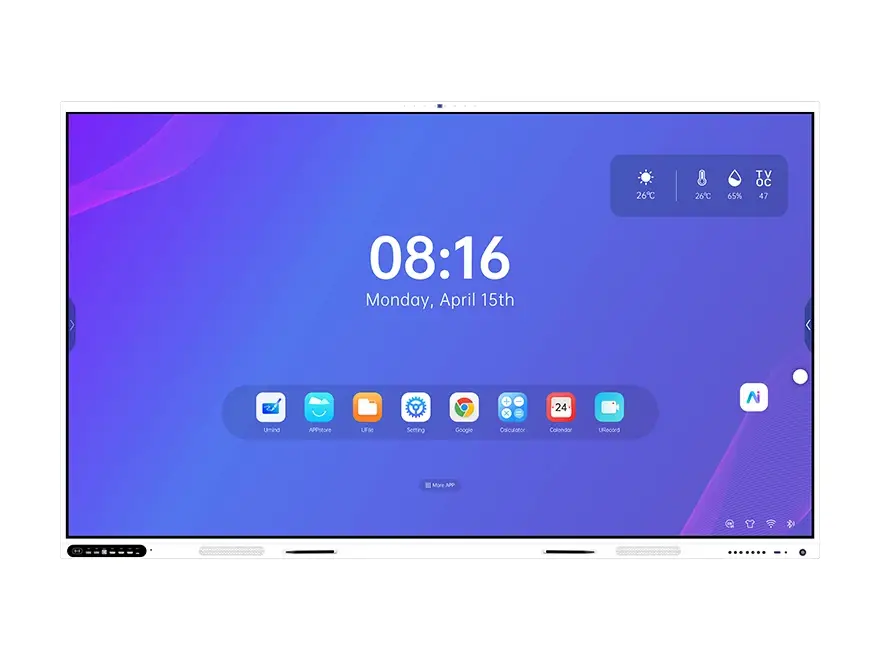
The demo uses an interactive flat panel. The same CMS layer is used across our interactive panels and LED signage — see CMS solution and cloud solution.
Related Product
Related Articles
WhatsApp: +86 137 1299 3879
Email: sukiwang@riotouch.com · Riotouch Technology