How to Test and Fix Touch Screen Issues with the Riotouch IR Touch App
Touch response issues on interactive displays can be frustrating - whether it's a misaligned cursor, a dead corner, or unresponsive touches. The good news: Riotouch provides a dedicated Android infrared (IR) testing app that lets you diagnose the problem, calibrate the touch, and even capture the data needed for our after-sales team to solve it remotely. Here is a complete step-by-step guide.
Step 1: Download the IR Touch Test App
The Android infrared testing software is available for download from Riotouch. Install it on the interactive display (Android system) or on the OPS module connected to the screen.
Step 2: Open the IR Test Software
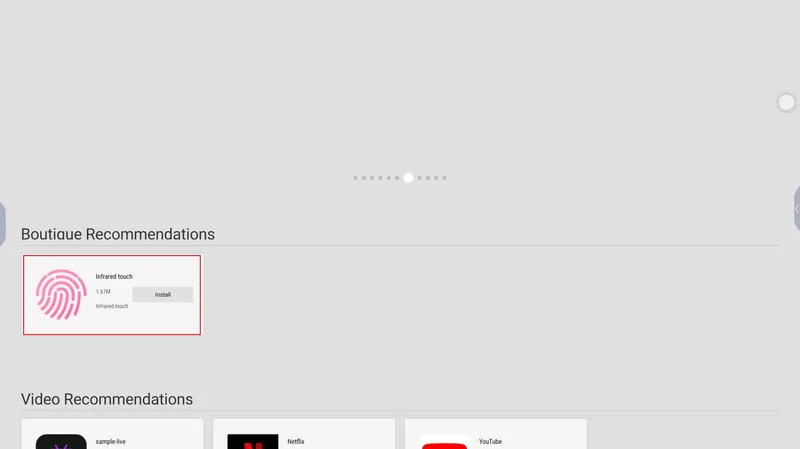
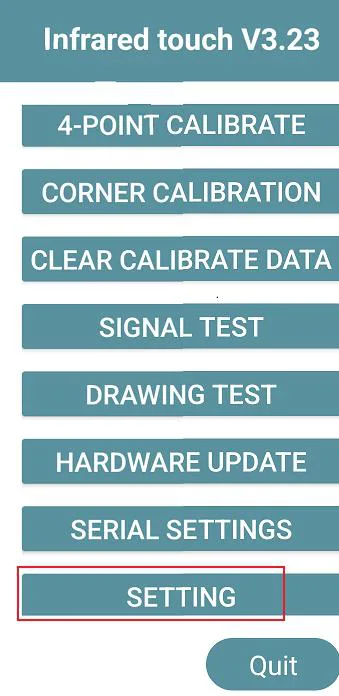
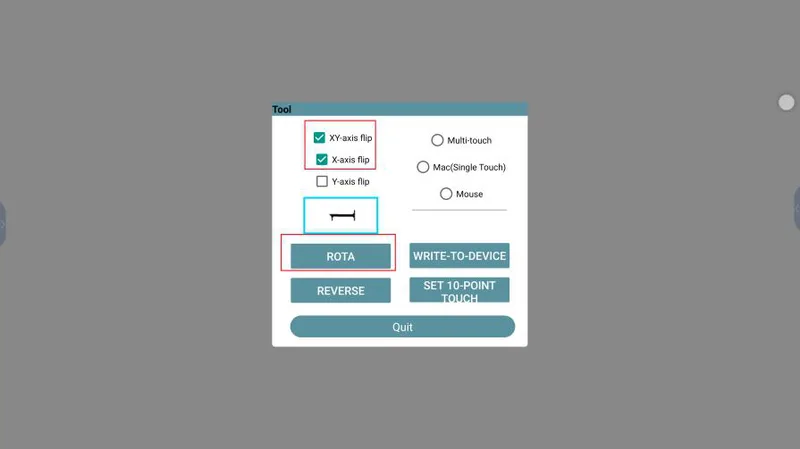
On the Android desktop, find and click the "infrared touch" icon to launch the app. The infrared test window pops up with all the diagnostic tools, as shown below.
Step 3: Four-Point Calibration (Fix Cursor Offset)
Sometimes the cursor position deviates from where your finger actually clicks, usually due to hardware installation. The four-point calibration fixes this.
(1) In the test window, click the "4-point calibration" button.
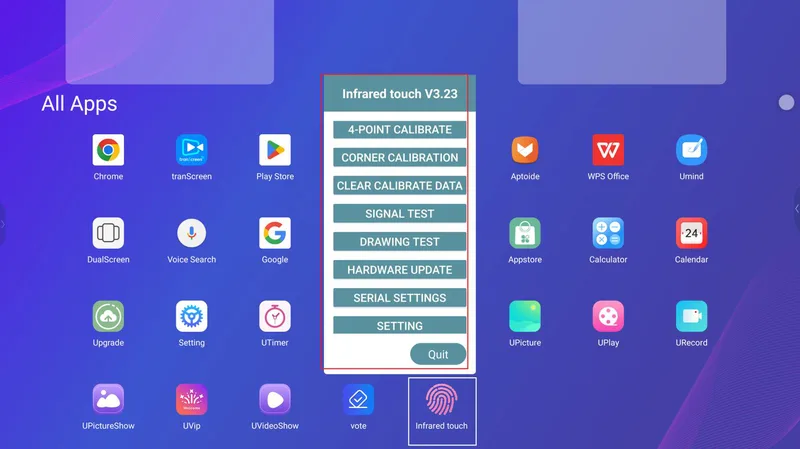
(2) Use your finger or magnetic pen to click the center of the red cross-dot. Click the remaining 3 points counterclockwise as they appear. The closer to the center of each red dot, the better the calibration accuracy. When finished, it automatically returns to the desktop.
(3) If the blue progress bar covers the red dot and a timeout occurs, you can choose to continue calibration or exit.
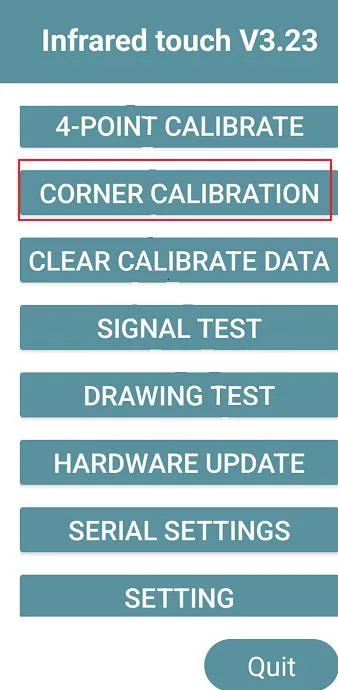
Step 4: Corner Calibration (Fix Corner Touch Issues)
Corner calibration optimizes the touch response at the edges and corners of the screen - useful when corners feel unresponsive or inaccurate.
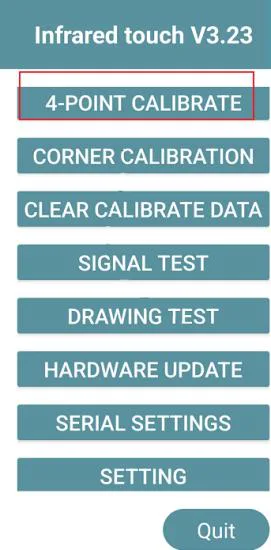
(1) Click the "Corner Calibration" button in the test window.
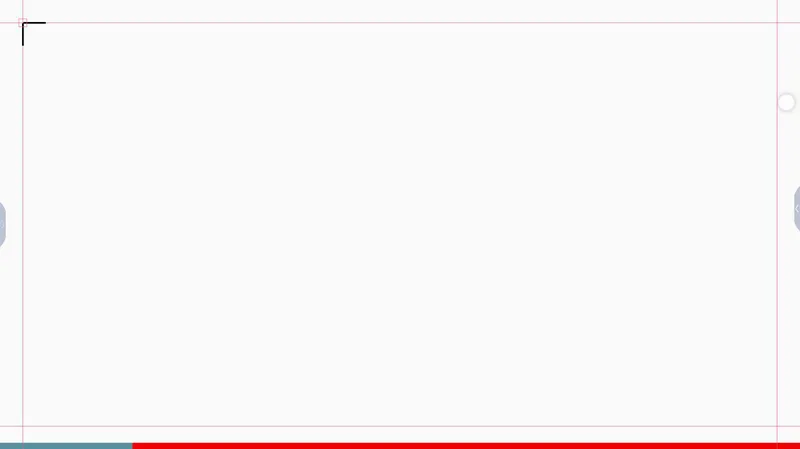
(2) Use the magnetic pen to click the center of each red cross point, following the counterclockwise sequence until all points disappear and it returns to the desktop.
Step 5: Clear Calibration Data (Restart from Scratch)
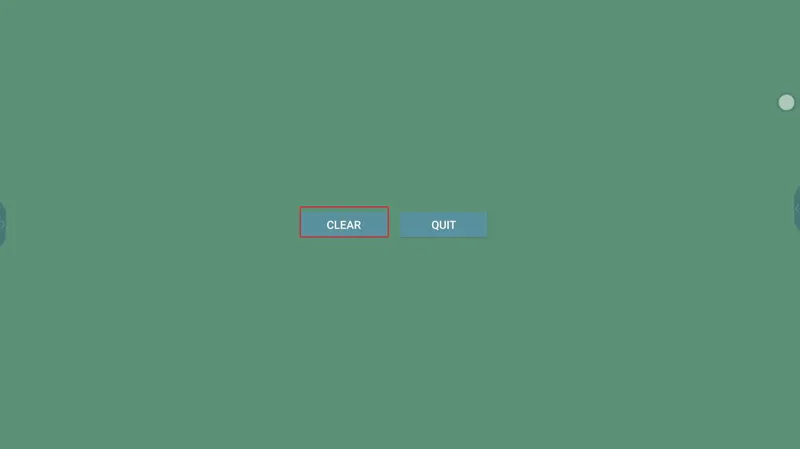
If calibration results are still unsatisfactory, click "Clear calibration data" to reset, then recalibrate from the beginning.
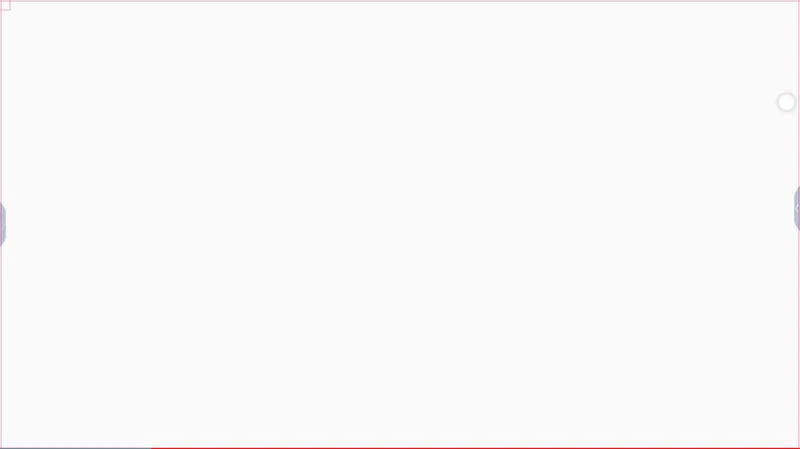
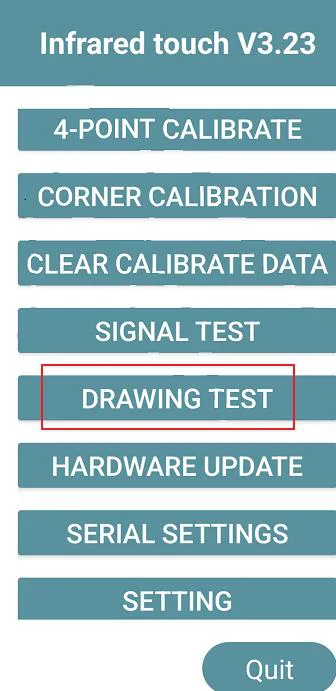
Step 6: Drawing Test (Check Touch Accuracy)
Click the "Draw Test" button to draw on the screen. This verifies whether the touch tracking is smooth and accurate across the whole display, and reveals any dead zones.
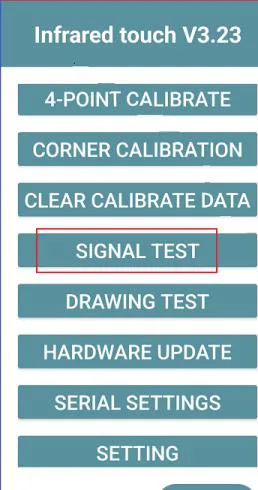
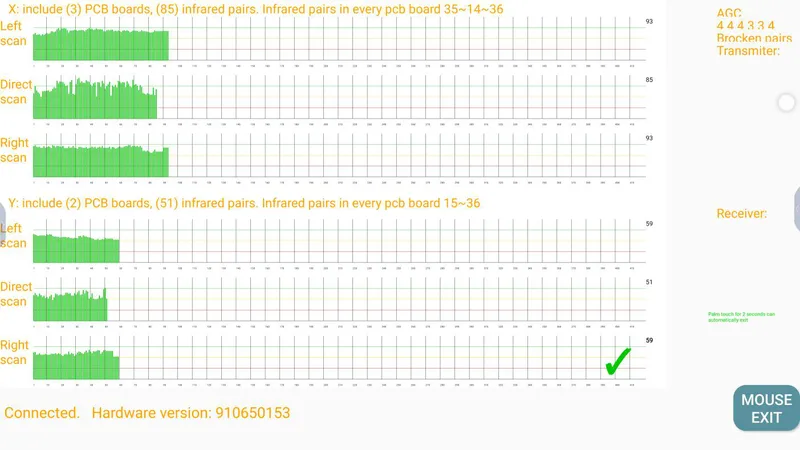
Step 7: Signal Test (Verify IR Hardware)
The Signal Test detects whether the infrared signal is working properly. Open the test and check whether the factory mode signal diagram is ticked. If it shows a red cross state, take a screenshot and send it to the Riotouch after-sales team - this is the key data we need to solve the problem!
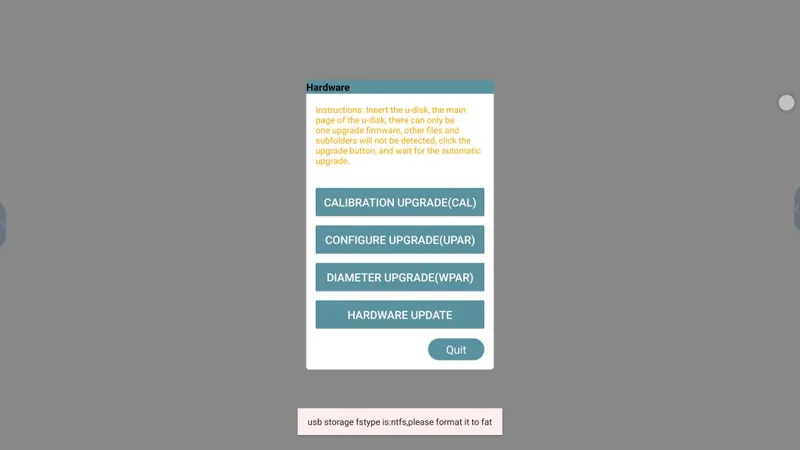
Step 8: Hardware Update (Upgrade Firmware)
Click "Hardware Update" to open the upgrade interface. The display supports calibration upgrade, configuration upgrade, diameter upgrade, and hardware update. Select the correct firmware file to upgrade the touch hardware.
Step 9: Serial Settings
Set the serial communication parameters associated with the IR touch device here, if needed for advanced configuration.
Step 10: Advanced Settings
Click "Settings" to configure: (1) Area touch flip (X/Y axis exchange, 90° flip, X-axis flip, Y-axis flip), (2) Work mode (multi-touch / Mac mode / mouse mode), (3) other options like rotate. Preview results are shown after clicking.
Step 11: Exit
Click to close the IR test window and exit the software.
Key Tip: What Data to Send for Support
When reporting a touch problem to Riotouch support, please capture and send: (1) A screenshot of the Signal Test result (especially if any red crosses appear), (2) A screenshot of the Drawing Test result showing the problem area, (3) Photos of the screen model and serial number. This data helps our engineers identify the root cause quickly and provide the right fix - often a firmware update or calibration guidance that resolves the issue remotely.
Related Product

Related Articles
WhatsApp: +86 137 1299 3879
Sales Team · Riotouch Technology