Interactive Flat Panel Maintenance: A Complete Guide
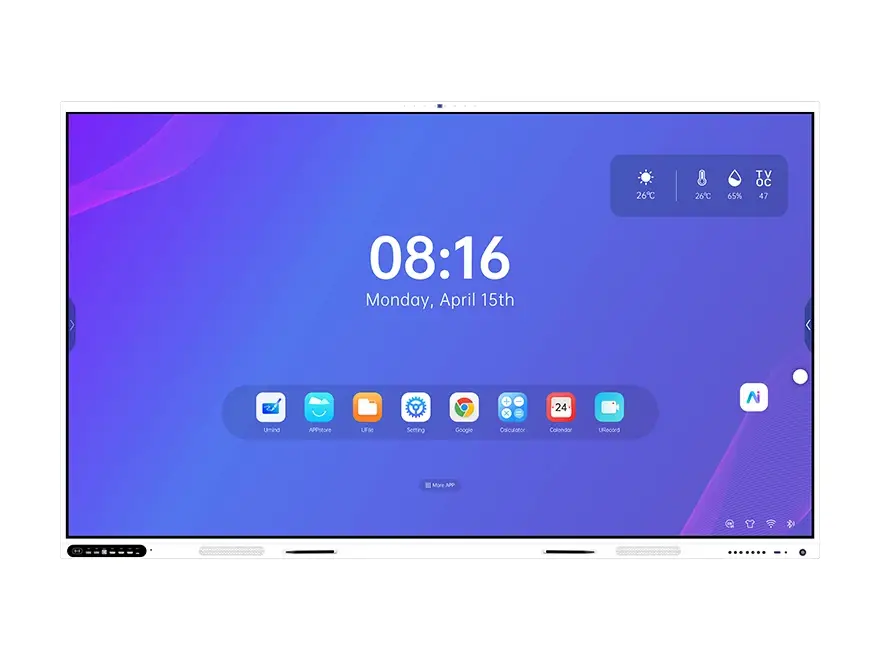
An interactive flat panel is a serious investment. Whether you have equipped one classroom or a hundred meeting rooms, these displays are expected to keep working for years — through daily touch interaction, long operating hours and constant use by many different people.
Most organisations spend all their attention on the installation and almost none on what happens afterwards. A handful of simple habits can extend the working life of a panel considerably, cut repair costs and keep the experience smooth for teachers, students and employees. This guide covers what to do daily, weekly, monthly and once a year — and the mistakes that quietly do the damage.
Why maintenance matters more than most people expect
Unlike a television that sits passively on a wall, an interactive flat panel is a working tool. Its touch layer, screen surface, internal computer and cooling system are all in constant use. The problems that appear on neglected panels are predictable:
- Touch unresponsiveness caused by dust or oil building up along the touch frame
- Overheating from blocked ventilation and dust accumulation inside the enclosure
- Screen scratches caused by the wrong cleaning materials
- Sluggish performance from storage congestion and outdated firmware
- Premature failure of internal components in rooms that are poorly ventilated
Almost all of these are preventable, and prevention costs far less than replacement.
Daily habits: what takes 30 seconds
The most effective maintenance is also the simplest. Build these three habits into the routine of the room.
- Wipe the screen at the end of each day. Use a microfiber cloth, dry or very slightly dampened with water. This removes fingerprints, dust and oils before they harden or spread. Avoid paper towels — they leave lint and can create micro-scratches.
- Power down properly. Do not simply cut the power at the wall. Use the shutdown function in the display menu or on the remote, so the Android system can close applications and the internal storage can finish writing properly.
- Keep the area around the panel clear. Nothing should block the ventilation slots on the sides or the back. A display pressed against a cabinet or covered by furniture runs hotter and fails sooner.
Weekly tasks: stopping the build-up
- Clean the touch frame and bezel. Dust collects along the infrared touch frame, especially on the top edge where it is invisible from the floor. Use a soft dry cloth or a can of compressed air to clear the sensor channels. Dust in these channels is the usual cause of “ghost touches” and zones that stop responding.
- Check the ventilation areas. Inspect the vents for dust. If they are visibly clogged, vacuum gently with a brush attachment on low power. Never blow air into the vents — that pushes the dust deeper inside.
- Test touch accuracy. Open a drawing or whiteboard application and run a finger along the edges and corners of the screen. Dead zones or responses that are offset from the finger usually mean the panel needs calibration, which most models offer in the settings menu. Our step-by-step guide to testing and fixing touch screen issues covers the signals to look for.
Monthly tasks: deeper attention
- Deep clean the screen. Power the display off and let it cool. Use a screen-safe cleaner — never ammonia-based products, alcohol or abrasive solutions. Spray onto the cloth, never directly onto the screen, wipe in gentle circular motions, and finish with a dry microfiber cloth to remove streaks.
- Review storage and performance. Check the free internal storage. If it is below about 20 percent, remove unused applications, clear cache files and move old lesson material to the cloud. A display with full storage becomes slow and may fail to install important updates.
- Inspect cables and connections. Check HDMI, USB and power cables for wear, strain or loose connectors. A loose HDMI cable produces intermittent signal loss that users very often report as a display fault.
- Verify software updates. Check for firmware updates. Manufacturers release them to fix bugs, improve touch responsiveness and add features. Riotouch provides OTA updates and a firmware update guide that walks through the process on RK3588 panels.
Seasonal and annual maintenance
Once a year, bring in a technician to inspect the internal cooling fans and heatsinks, the power board condition, the alignment of the touch frame sensors and the mounting hardware. Even with good routine care, touch sensors can drift over time, and a full calibration — using the built-in tool or a manufacturer utility — restores precision. Riotouch provides a dedicated IR Touch application for calibration, drawing tests, signal tests and firmware updates.
It is also worth reviewing the operating environment, because conditions change without anyone noticing: has humidity increased (the ideal range is roughly 20–80 percent, non-condensing), has renovation made the room dustier, is the display now exposed to direct sunlight or a heat source, and have temperature swings become more extreme? If any of these have got worse, fix them before they damage the panel.

Common mistakes to avoid
| Mistake | Why it is harmful |
|---|---|
| Using glass cleaner or alcohol | Damages the anti-glare coating and the touch surface |
| Spraying liquid directly onto the screen | Liquid seeps into the frame and reaches the electronics |
| Cleaning while the display is hot | Causes streaking and thermal stress on the panel |
| Using rough cloths or paper towels | Creates micro-scratches that build up over time |
| Blocking ventilation | Overheating and eventual component failure |
| Ignoring small touch issues | Small dead zones usually indicate a larger sensor problem |
| Never updating the firmware | Known bugs stay unfixed and performance improvements are missed |
Special considerations for education
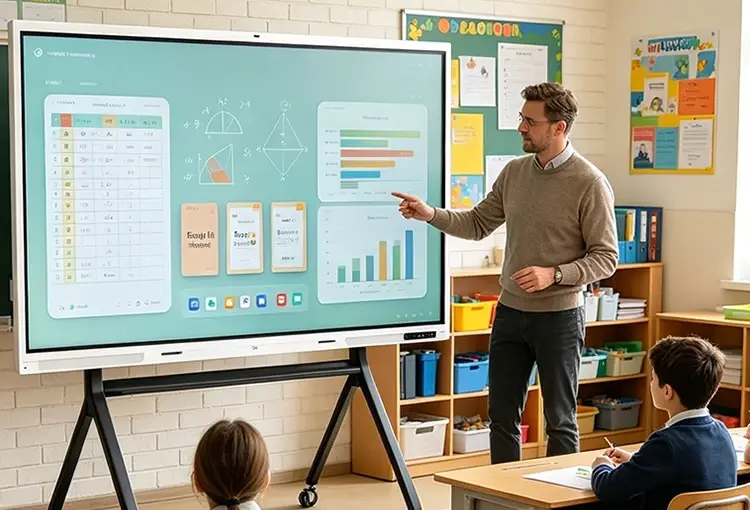
Classrooms present the hardest maintenance conditions, because a panel may be used by dozens of students a day. A few extra practices make a real difference:
- Provide a cleaning station next to the display with microfiber cloths and an approved cleaner
- Train teachers in proper cleaning — a five-minute session prevents most accidental damage
- Use protective measures during craft or science activities to prevent splashes
- Set a cleaning schedule that includes student monitors or assigned staff
- Track issues in a simple log so recurring problems are identified early rather than after the failure
For a wider view of what these panels have to survive in daily classroom use, see our classroom buying guide.
The return on maintenance
Consider the arithmetic rather than the price list. An 86-inch interactive flat panel is a substantial capital item, while proper maintenance costs a few minutes a day and a modest annual inspection. The alternative is premature replacement, expensive repairs and the disruption of a dead display in the middle of a term. Across a fleet of fifty displays, the difference between maintained and neglected panels is measured in years of additional service life and in repairs that never have to happen.
Building a maintenance culture
The most important factor is not the checklist itself but the habit around it. Organisations that treat their interactive displays as long-term assets rather than disposable equipment consistently get more value from them. Start with a simple, visible schedule:
- Daily: wipe the screen, power down properly
- Weekly: clean the touch frame, check the vents, test touch accuracy
- Monthly: deep clean, storage check, cable inspection, update check
- Annually: professional inspection, recalibration, environment review
Write it down, assign responsibility to a named person, and review it periodically. Consistency beats intensity.
When something goes wrong
Even with good maintenance, issues can arise. Some are worth attempting yourself; others should go straight to support.
Simple fixes to try first: reboot the system, check the cable connections, run the touch calibration, and clear the application cache. Our interactive flat panel troubleshooting guide walks through these in order.
Issues that need professional support: dead zones that persist after calibration, display lines or colour distortion, repeated overheating warnings, power failures, and any physical damage to the screen.
Riotouch provides dedicated after-sales engineers, spare parts supply, remote diagnosis and on-site service coordination through a global partner network, with a three-year limited warranty on standard products. Spare touch frames, mainboards and accessories are available for existing installations, and specifications for every current model are published in our product specification library.
FAQ
How often should an interactive flat panel be cleaned?
Wipe the screen daily with a dry microfiber cloth, clean the touch frame weekly, and carry out a full deep clean once a month. A professional inspection and recalibration once a year is enough for most installations.
Can I use glass cleaner or alcohol on the screen?
No. Ammonia-based glass cleaners, alcohol and abrasive solutions damage the anti-glare coating and the touch surface. Use a screen-safe cleaner applied to a microfiber cloth — never sprayed directly onto the display.
Why has the touch screen stopped responding in some areas?
The most common cause is dust or grease in the infrared touch frame, particularly along the top edge. Clean the frame channels, then run the calibration tool. If dead zones remain after calibration, contact support rather than continuing to use the panel.
Does maintenance affect my warranty?
Routine care protects your warranty rather than risking it — most failures we see on neglected panels are dust, overheating and cleaning damage. Riotouch covers standard products with a three-year limited warranty, and spare parts remain available for older models.
How do I update the firmware?
Check the update option in the display settings first; Riotouch panels support OTA updates. Larger firmware packages and the IR Touch utility are provided by our after-sales team — the process is described in our firmware update guide.
Related Product
Interactive Flat Panel (65″ – 110″)
Android 14 with RK3588 or RK3576 mainboard, 4K UHD, tempered glass and optional Windows OPS — built for classrooms, boardrooms and training centres.
View Product →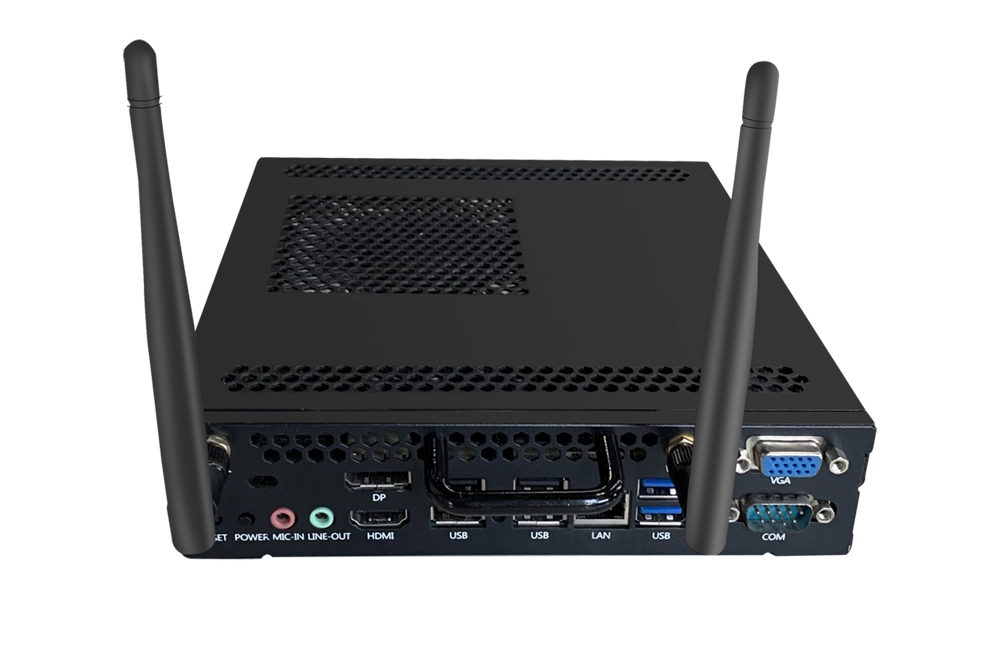
OPS Module
Slot-in Windows PC module for interactive panels — run desktop software, legacy teaching tools and Windows-only applications without a second screen.
View Product →IFPD OEM / ODM Solution
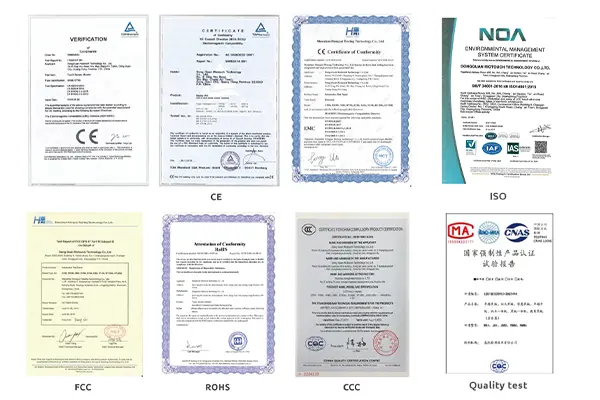
Factory-direct interactive flat panels with your branding, packaging, boot screen and documentation — plus the certifications required for school and government projects.
View Product →