RK3576 Dual Screen After an Update: The Two-Minute Fix
If an RK3576 panel comes back from a software update showing the dual screen, or with text that looks as if it was printed twice slightly off centre, the panel type is the first thing to check. It is one setting, changed from the remote control, and the panel restarts by itself once you change it. This note walks through the three steps our service team uses, what to check afterwards, and the cases where this is not your problem at all. It covers the RK3576 platform only. For RK3588 units, ask us first.
1. What the symptom looks like
The fault usually shows three things at once:
- The picture is drawn twice with a horizontal offset, most visible in large elements such as the clock, the date or a slide title.
- Text looks soft or double-edged, even though the same file is sharp on another display.
- The resolution looks wrong: the desktop no longer fills the panel the way it did before the update.
It starts after an update, not gradually. Figure 1 was taken on a unit with exactly this fault, and the doubling is visible on the wallpaper behind the menu: the large number and the date are both drawn twice, one copy offset to the left.
2. Why the panel shows two images
An RK3576 board can drive a panel in two modes. In Single mode it treats the panel as one surface and sends one full picture. In Dual mode it treats the panel as two halves and addresses each half separately, which is what a dual-port panel needs.
When the mode and the panel do not match, the picture is rendered twice across the panel and the resolution stops matching the hardware. In the units we have handled, a software update left the value on Dual while the panel in the field was a single-port panel. If the doubling appeared after an update, this setting is the first place to look, before you touch cables or the source device.
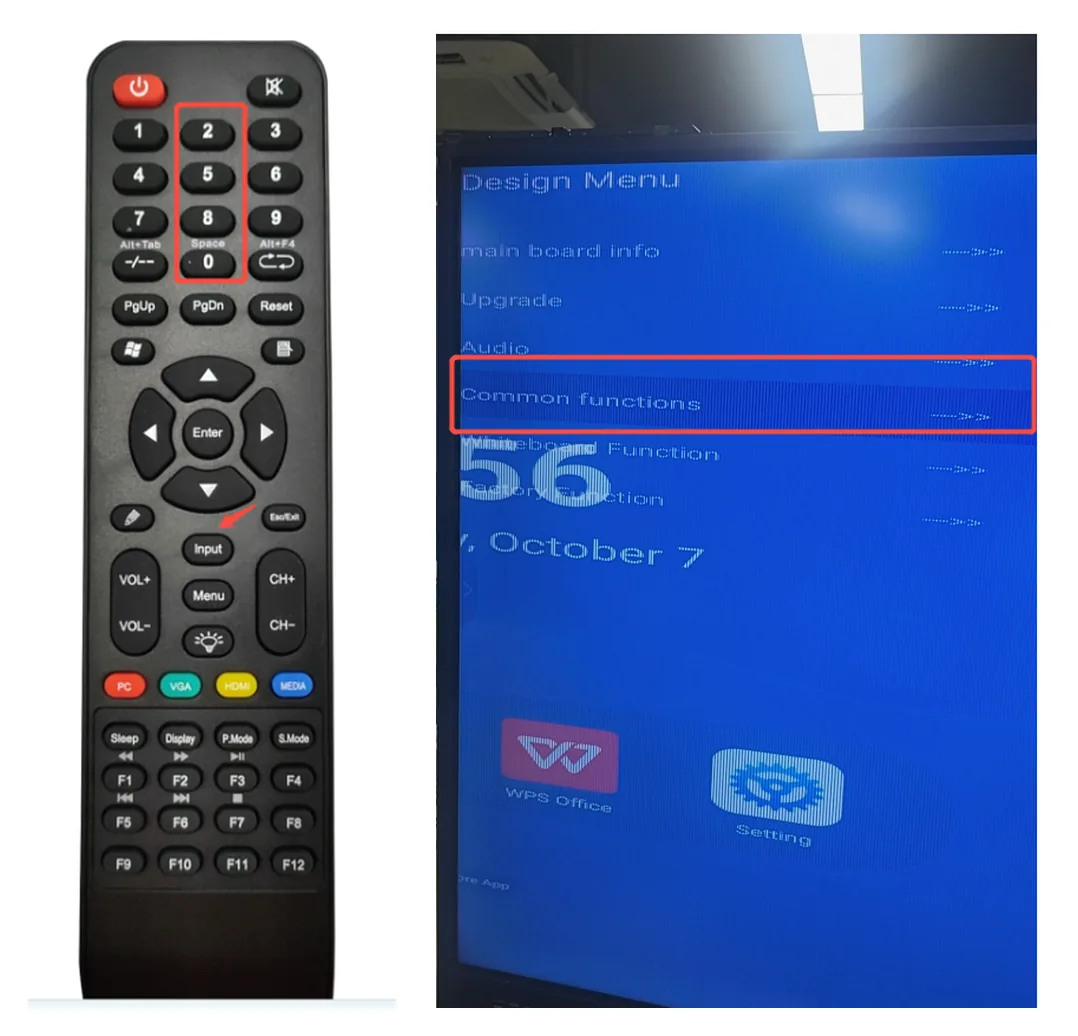
Figure 1 — Left: the sequence lives on the remote, not on screen — INPUT first, then 2-5-8-0. Right: the service menu that opens, titled Design Menu, with the doubling visible on the wallpaper behind it.
3. Before you start
Three of these are yes-or-no items, and skipping them is the usual reason the sequence appears not to work.
| What you need | Why it matters |
|---|---|
| The original IR remote control | The 2580 sequence is read by the display board from the infrared remote. App-based or Bluetooth remotes usually do not pass it through. |
| Batteries inside the remote | A weak remote drops the last keypress and the menu never opens. This is the most common reason the sequence "does nothing". |
| The panel switched on and showing its normal picture | The board listens for the sequence whatever app is in front, so no app has to be opened first. |
| About three minutes | The panel restarts itself after the change, and that first boot is slower than a normal one. |
4. The three steps
Step 1 — Press INPUT, then 2580.
With the panel on and showing its normal picture, point the remote at the panel and press INPUT, then 2-5-8-0 as one sequence, without a long pause between the keys. If a short list of modes appears, choose Factory Mode. On the units we have seen, the next screen is titled Design Menu; some internal notes call this whole level Factory Mode, so do not be surprised by either name.
Step 2 — Select Common functions and press Enter.
Use the arrow keys to move down to Common functions, then press Enter. A long page of individual settings opens. Read it first and change nothing else on it.
Step 3 — Set Upgrade Panel DualPort to Single.
Move down to the line reading Upgrade Panel DualPort. On screen it is written as one word, DualPort; some notes split it as Dual Port. Look at the value on the right: if it says Dual, set it to Single and press Enter. The panel shows a restart prompt in the bottom right corner and reboots by itself.
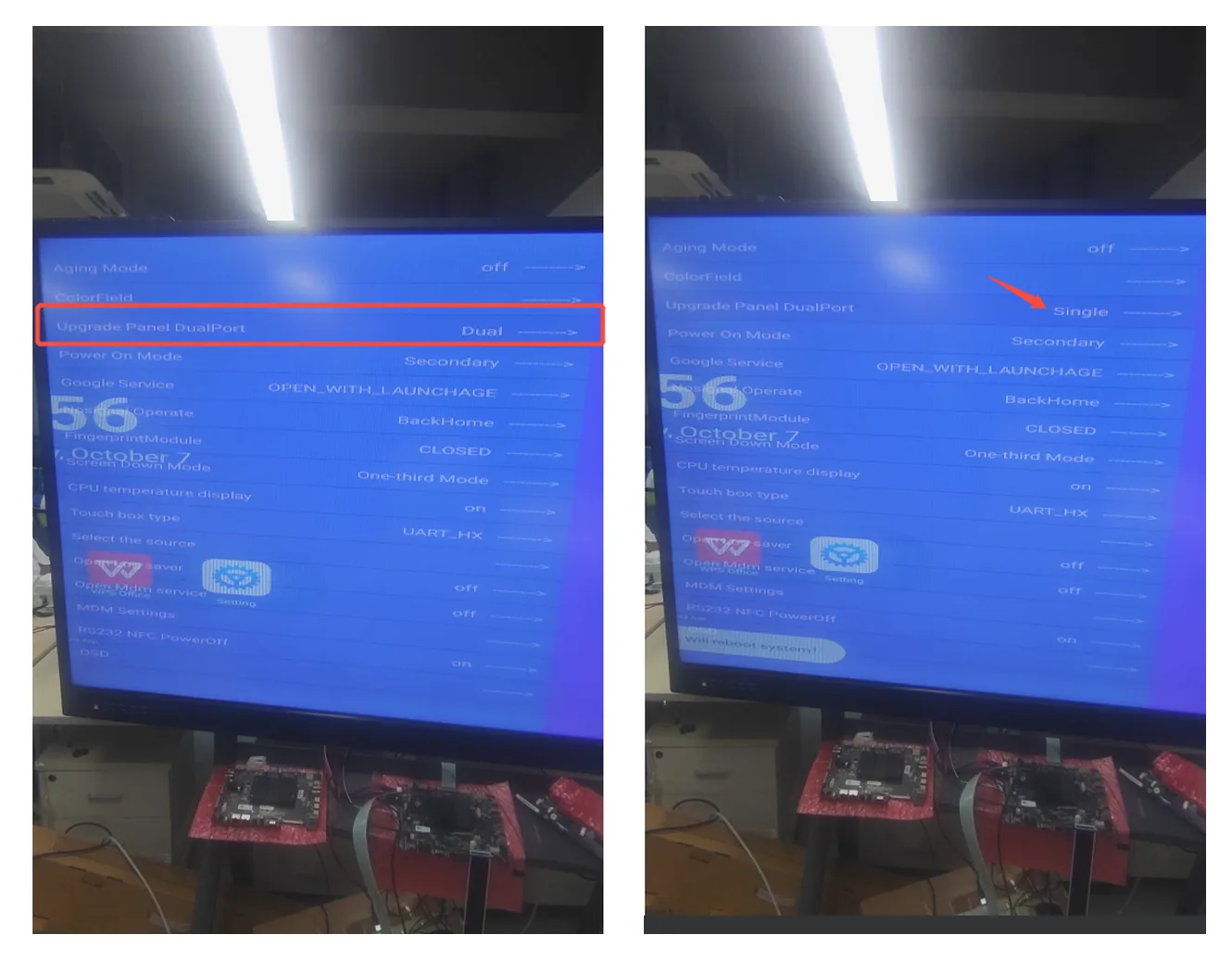
Figure 2 — The Common functions page before and after. Left: the value came back as Dual. Right: set to Single, with the restart prompt at the bottom of the screen.
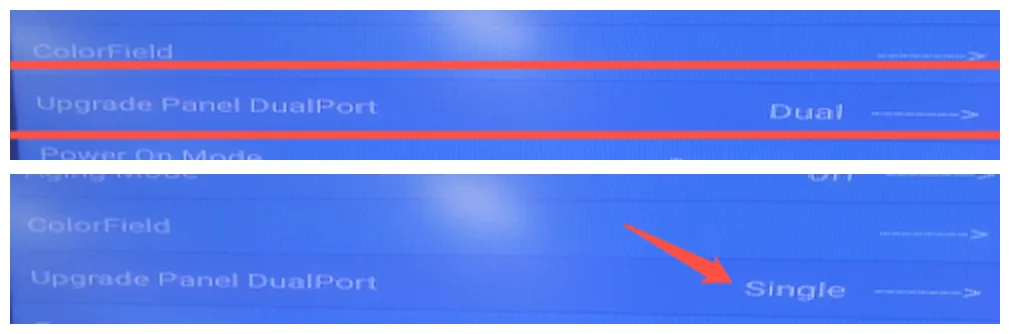
Figure 3 — The same line enlarged. Top: Upgrade Panel DualPort on Dual, the value the update left behind. Bottom: after the change to Single. The panel reboots by itself once the value is set.
5. After the restart
- Let the panel restart by itself. Do not cut the power while it is rebooting.
- Check the home screen at full size: one picture, edge to edge, no offset copy.
- Check a large-text element — the clock, the date, a slide with big numbers — because that is where doubling is easiest to see.
- If the picture is still doubled, stop there. Do not try other items in the menu. Photograph the Common functions page with the value visible, note the model and the firmware version, and send both to us.
6. When this is not the problem
Doubling has more than one cause, and the wrong fix wastes a service visit. These four cases are the ones we see most often.
| What you see | What it usually is | What to do |
|---|---|---|
| Two desktops with different content, side by side | Two displays working as intended, not a fault | Nothing — that is a configuration |
| Correct in the Android home screen, doubled on the HDMI or OPS input | The source device output, not the panel | Change the output resolution on the source |
| Wrong resolution on one input only | Cable or source EDID | Test the Android home screen before touching any menu |
| Black or blank screen after setting Single | The panel may genuinely be a dual-port panel | Set the value back to Dual and contact us with the model |
7. Working safely in the service menu
The service menu is a factory-level menu, and it holds far more than this one setting. Four rules keep a two-minute fix from turning into a service case:
- Change only Upgrade Panel DualPort. Nothing else in this menu is part of this procedure.
- Write down the value before you change it, so you can put it back.
- Do not switch on Aging Mode or ColorField. They are burn-in test patterns, not repairs.
- If you are unsure, photograph the page and send it to us first. We will tell you the value for your model.
8. Frequently asked questions
Why did an update change this setting?
We cannot read your unit update log from here. In the cases we handled, the value came back as Dual after a software update while the panel was single-port. Treat "it appeared after an update" as the trigger to check this one item first.
Will this erase my apps, accounts or files?
It changes one display-board setting and restarts the panel. It is not a factory reset. We still recommend doing it outside class or meeting hours, because the restart interrupts whatever is on screen.
I press INPUT and 2580 and nothing happens.
Check the batteries, then press the five keys as one sequence with no pause in the middle. If the menu still does not open, the remote may not be the original one, or the panel may be running a build that does not expose this menu.
The value already says Single and the picture is still doubled.
Then the drive mode is not the cause. Send us the photo of the page, the model and the firmware version, and we will look at the source device and the panel together with you.
Does this apply to RK3588 units?
No. This note covers the RK3576 platform. The RK3588 menu is different, and a wrong value there can take the panel off its correct configuration, so ask us before you open that menu.
About this note
It is based on the Riotouch service note RK3576 Dual Screen Trouble Shooting and on the screenshots taken during a bench test. If your symptom does not match the one described above, send us a photo of the screen and we will tell you whether this procedure applies.
Related Articles
Suki Wang | Sales Manager | Riotouch
sukiwang@riotouch.com | WhatsApp +86 137 1299 3879
Room 201, No. 5 Zhenyuan East Road, Chang'an Town, Dongguan City, Guangdong Province, China