How to Upgrade RK3576 Firmware on a Riotouch Interactive Panel (Step by Step)
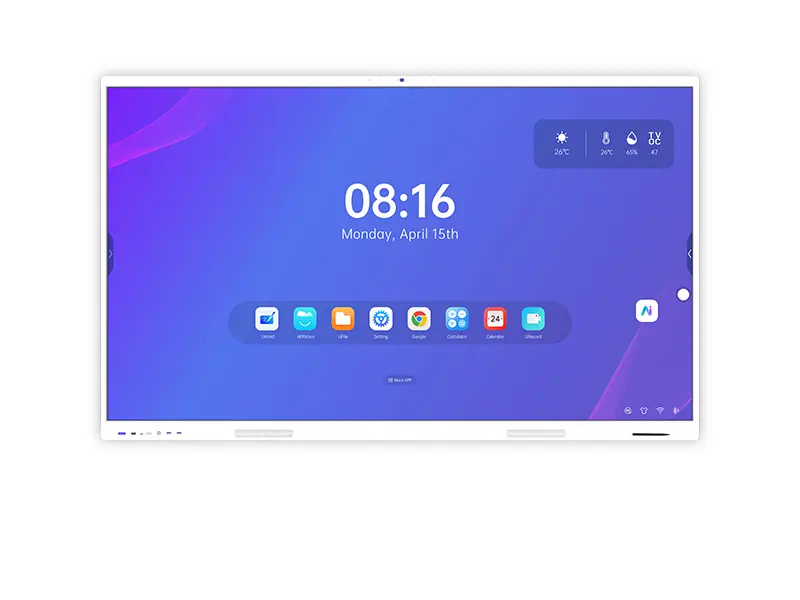
An interactive flat panel is a computer with a glass front. The Android layer, the panel timing and the touch controller all live in firmware — and every one of them can be out of date while the screen still looks perfectly healthy. This is the procedure we give our own service partners for RK3576-based panels.
It takes about ten minutes on site, of which five to seven are the flash itself. The rest is preparation and verification, and that is the part that decides whether the job succeeds or turns into a callback.
Why firmware matters more than most buyers expect
A panel that powers on is not necessarily a panel that works correctly. Firmware governs how the panel timing is driven, how the touch controller reports coordinates, and how the Android build manages memory and storage. When any of those drift out of step with the hardware revision, the symptoms appear slowly and are easy to blame on something else:
- Touch that responds but reports slightly offset coordinates
- Applications that close under load, or a home screen that reloads itself
- A split or doubled image after a mainboard replacement
- Screen sharing that drops on specific input combinations
In practice a firmware update is what you do in three situations: a mainboard revision arrives with a newer build, a panel is replaced in the field and needs its timing re-matched, or a specific fault has been traced to a known firmware bug.
What you need before you start
| Item | Requirement | Why it matters |
|---|---|---|
| Firmware package | Matched to your exact model and size | A 75 and an 86 inch build are not interchangeable even when they share a model family |
| USB flash drive | Formatted to NTFS | FAT32 drives frequently fail to be recognised at boot |
| USB port | USB 3.0 port on the mainboard | The external side ports will not trigger the upgrade |
| Time on site | About 30 minutes budgeted | The flash is 5 to 7 minutes; the rest is setup and verification |
Get the package from our support team rather than from a forum or a reseller archive. We do not publish generic packages, because the wrong build on the wrong panel is worse than an old build on the right one.
One warning before you begin
Do not cut the power while the progress bar is moving. An interrupted flash is the one situation that needs a factory re-flash rather than a repeat of this procedure. If the room has a master switch that maintenance staff use at the end of the day, tell them the panel is being updated.
The upgrade procedure
Step 1 — Download the RK3576 firmware
Request the package for your specific model from our support team. Send the model number and a photo of the label on the back of the panel; that removes any ambiguity about the build you need.
Step 2 — Put the firmware file in the root directory of the USB drive
Root directory, not a subfolder. The drive must be NTFS formatted. A file buried one level down is one of the two most common reasons the upgrade never starts.
Step 3 — Insert the drive into the USB 3.0 port of the mainboard
The mainboard port, not the external ports on the side of the panel. This is the single most common reason an upgrade does not start — service engineers reach for the accessible port, and nothing happens.
Step 4 — Power on while holding the power button
With the panel powered off, press and hold the power button, then power the device on. When the progress bar appears, the upgrade has started. The whole process is automatic from that point; the panel restarts when it is finished.
Step 5 — If the screen shows a double image after the upgrade
A split or doubled picture means the panel timing does not match the new build. Fix it from the factory menu:
- Press Input, then 2580 to enter the factory menu
- Open Design Menu › Common Functions › Upgrade Panel DualPort
- Set it to Single
This is a timing setting, not a fault. It appears most often when a panel or mainboard has been replaced and the timing configuration still describes the previous hardware.
Step 6 — Restart the panel and set the correct language
The final step is easy to forget. Restart, then set the language — the flash resets it. Plan for the panel to come back at defaults: treat it as a fresh setup rather than an in-place update.
When an upgrade is the wrong answer
Not every fault is a firmware fault, and flashing a panel that is working correctly costs time and introduces risk. If the symptom is a dead zone in one corner of the touch surface, dust in the touch frame is a far more likely cause — clean it and recalibrate first. If the panel overheats or shuts down under load, check ventilation before touching the software. And if the panel is running an older platform that still meets the requirement, an update you do not need is not an improvement.
For the wider picture on keeping a panel healthy between updates, see our interactive flat panel maintenance guide.
Common problems and what they mean
| Symptom | Most likely cause | What to do |
|---|---|---|
| The progress bar never appears | Drive format, file location, or wrong USB port | Check in order: NTFS, root directory, mainboard USB 3.0 port |
| Image is split or doubled | Panel timing does not match the new build | Factory menu, set Upgrade Panel DualPort to Single |
| Touch is offset after the update | Calibration was reset with the firmware | Run the touch calibration tool, then test all four corners |
| Language is English after the update | The flash resets regional settings | Set the language in display settings — expected, not a fault |
| Installed classroom apps are gone | The update restores the system image | Reinstall the apps the room needs, as with a fresh setup |
How long the whole job takes on site
Budget 30 minutes including setup and language configuration. The flash itself is 5 to 7 minutes; the rest is preparation, verification and reinstalling what the room needs. If the panel is in a lectern or a recessed wall mount, add time for access — reaching the mainboard port usually means moving the unit.
Do you need the firmware for your model?
Send us the model number and a photo of the label on the back of the panel, and we will send the matching package and confirm the procedure for your build. Full specifications for the RK3576 interactive flat panel and the RK3588 model are published on our site, and if the panel is paired with a slot-in computer the OPS module has its own firmware track. Detailed interface and firmware compatibility tables are in our product specifications library.
Frequently asked
Where do I get the firmware?
From our support team, matched to your model. We do not publish generic packages, because the wrong build on the wrong panel is worse than an old build on the right one.
Can I upgrade over the network instead?
This procedure is the USB method, which is the one that works regardless of network conditions — it is the method we recommend for field service.
The progress bar never appeared. What went wrong?
Check three things in order: the drive is NTFS, the file is in the root directory, and the drive is in the mainboard USB 3.0 port rather than an external port. Those three account for almost every failed attempt.
Does the upgrade erase installed apps?
Plan for the panel to come back at defaults — set the language, then reinstall what the classroom needs. Treat it as a fresh setup rather than an in-place update.
How long does the whole job take on site?
Budget 30 minutes including setup and language configuration. The flash itself is 5 to 7 minutes; the rest is preparation and verification.
Related Product
RK3576 Interactive Flat Panel
View Product →
 RK3588 Interactive Flat Panel
View Product →
RK3588 Interactive Flat Panel
View Product →
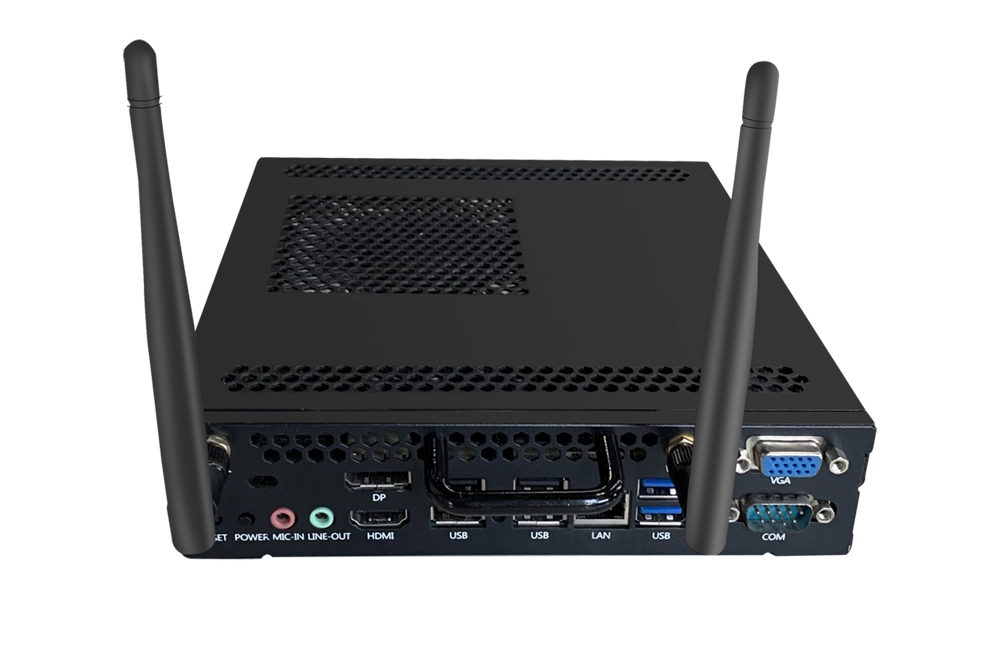 OPS Slot-in PC Module
View Product →
OPS Slot-in PC Module
View Product →